You tap on someone’s Instagram profile and there it is: a tiny circle where their profile photo should be. You lean in, pinch the screen, and nothing happens. That small, blurry circle is one of the most annoying design choices on the app, and it’s exactly why so many people go looking for an Instagram profile photo zoom trick in the first place.
The good news is that Instagram profile photo zoom is not one single feature. It is actually three different things bundled under one search term, and once you know which one you need, getting a clear look at any profile picture takes less than a minute. This guide walks through all three, plus a few things the other guides on this topic tend to skip, like the privacy side of profile photo zoom and why the image looks small to begin with.
What People Actually Mean by “Instagram Profile Photo Zoom”
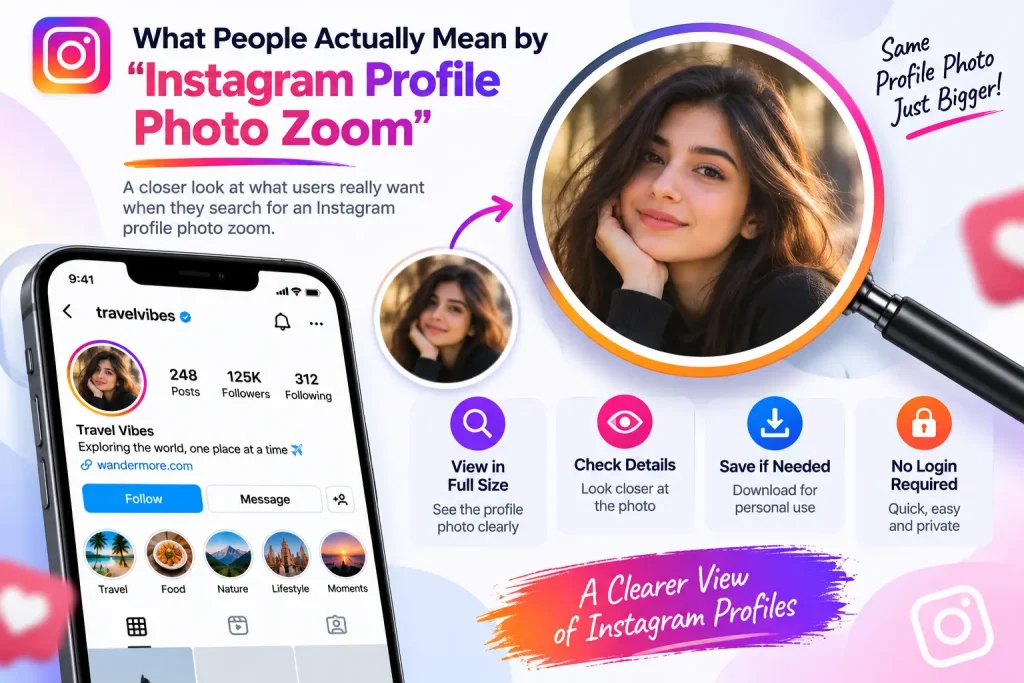
When someone searches for Instagram profile photo zoom, they usually mean one of these:
- The native zoom setting. In early 2026, Instagram rolled out an “Allow Profile Picture Expansion” toggle inside privacy settings. This is the official Instagram profile photo zoom feature, and it controls whether other people can tap and enlarge your profile picture from inside the app.
- Viewing a full-size profile photo. Instagram displays profile pictures as a tiny circle, so a lot of people use the phrase “zoom” to mean “show me the picture at its real size,” even if no pinching is involved.
- Phone accessibility zoom. Some people simply want to magnify their screen to see a profile photo more clearly, which uses a setting built into iOS or Android rather than Instagram itself.
Once you separate these three, the confusion around Instagram profile photo zoom mostly disappears. Below, we’ll cover each one in order, starting with why the picture looks so small in the first place.
Why Your Instagram Profile Photo Looks So Small
This part gets skipped in almost every other article on Instagram profile photo zoom, but it explains everything.
Instagram stores profile pictures at a fairly small resolution, roughly 320 by 320 pixels, even though it recommends uploading a 1080 by 1080 pixel square image. On top of that, the app only displays the photo as a circle that’s about 110 pixels wide on mobile and around 180 pixels on the web. So even a sharp, high-resolution photo gets squeezed down to a small circle with no in-app option to expand it.
That’s the real reason pinch-to-zoom doesn’t do anything on a profile picture. You’re not zooming into a bigger image, you’re just zooming into a tiny one, and it stays blurry no matter how close you get. Understanding this helps explain why an actual Instagram profile photo zoom method has to either pull a larger version of the image or open a dedicated viewer, rather than rely on a simple pinch gesture.
Method 1: Turn On Instagram’s Official Profile Photo Zoom Setting
As of 2026, Instagram added a real, built-in profile photo zoom feature called “Allow Profile Picture Expansion.” When it’s switched on for an account, visitors can tap that account’s profile picture and see it enlarged directly inside the app, no third-party tool needed.
Here’s how to enable Instagram profile photo zoom on your own account:
- Open your profile and tap the three-line menu icon in the top right corner.
- Go to Settings and privacy.
- Tap Account privacy.
- Find Allow Profile Picture Expansion and switch it on.
This setting works the same way on both iPhone and Android. Once it’s on, anyone who visits your profile can tap your photo to see a larger version, which is genuinely useful if you run a business account or a creator page and want your photo to look sharp rather than pixelated.
A couple of things worth knowing:
- The rollout has been staggered by region, so some users report the toggle isn’t visible yet on their account, even after updating the app. If that happens to you, updating from the App Store or Play Store and checking again in a few days usually resolves it.
- This setting only controls expansion inside the Instagram app itself. It has no effect on whether someone can screenshot your photo or view it through an outside website.
Method 2: Turn Off Profile Photo Zoom for Privacy
Not everyone wants their profile photo to be zoomable. If you’d rather keep your picture at its normal small size and limit how closely people can inspect it, you can turn the same setting off.
To disable Instagram profile photo zoom:
- Tap the three-line menu on your profile.
- Go to Settings and privacy > Account privacy.
- Switch Allow Profile Picture Expansion off.
Turning this off stops other users from tapping to expand your photo from inside the app. It’s a small privacy step, and it’s worth pairing with a general review of your account privacy settings if you’re concerned about people examining your profile photo closely, since Instagram profile photo zoom is only one piece of a much bigger privacy picture. It’s also worth knowing what this setting doesn’t do: your profile picture is still public data by default and can still be viewed at a larger size through outside tools, even on a private account, so switching the in-app toggle off is not a complete fix.
Method 3: Use Your Phone’s Built-In Zoom
If you just want to magnify what’s on your screen, including a profile photo, without touching any Instagram setting, your phone already has a tool for that.
On iPhone:
- Open Settings > Accessibility > Zoom and turn it on.
- Inside Instagram, double-tap with three fingers to zoom in on a profile photo.
- Drag with three fingers to move around the enlarged image.
- Double-tap with three fingers again to zoom back out.
On Android:
- Open Settings > Accessibility > Magnification.
- Turn on Magnify with triple tap or Magnify with a button, depending on your device.
- Triple-tap the screen inside Instagram to zoom in on the profile photo area.
This method magnifies whatever is on screen, so the image quality is limited to however large Instagram is already displaying it. It’s handy in a pinch, but it won’t reveal detail that isn’t there to begin with. For that, you need the actual full-size photo, which brings us to the next method.
Method 4: View Any Profile Photo in Full Size
If the account you’re looking at hasn’t turned on the in-app expansion setting, or you want a sharper copy than the app shows, a profile picture viewer is the more reliable route. These are free web tools where you enter a public username and the tool pulls Instagram’s original, larger version of the profile photo instead of the shrunken circle the app displays.
Here’s generally how it works:
- Open the viewer tool in your browser.
- Type in the public username, with or without the @ symbol.
- The tool loads the original profile photo at a larger resolution.
- You can then view it in full size or save it to your device.
A few practical tips that most guides on this topic leave out:
- Stick to public accounts. These tools only work with public profiles. If an account is private, the picture stays hidden, which is exactly how it should work.
- Check what the site asks for. A genuine profile photo zoom tool never needs your Instagram password or login. If a site asks you to sign in with your Instagram credentials before it’ll show you a picture, close the tab. That’s a credential-harvesting red flag, not a real feature.
- Watch for a flood of pop-ups or forced app downloads. Some sites in this space are built more around ad revenue than the actual tool. A clean, fast result with no login and no install is the standard to expect.
- Understand the resolution limit. Even the best viewer can only pull the largest version Instagram stored. If someone uploaded a small or blurry photo, no tool can add detail that was never there.
Is It Okay to Zoom Someone’s Instagram Profile Photo?
This is the question most competing articles skip entirely, and it’s a fair one to ask before you go looking up someone else’s picture.
Profile photos on Instagram are public by default, even on accounts with private posts. Anyone who visits a profile can already see the small circular version, so viewing a larger copy of the same public image isn’t accessing anything hidden. What matters more is intent and behavior: looking at a profile photo out of curiosity is different from using it to harass, impersonate, or repeatedly monitor someone. Downloading someone else’s photo to use elsewhere, like on a fake account or in an ad, can also raise copyright and impersonation issues regardless of how you obtained the image.
If you’re on the other side of this, wondering who might be looking closely at your own photo, the “Allow Profile Picture Expansion” setting from Method 2 above is the most direct control you have.
Troubleshooting: When Instagram Profile Photo Zoom Doesn’t Work
A few common snags people run into, based on what’s been reported since the setting rolled out in 2026:
- The toggle isn’t in your settings at all. This is almost always a phased rollout issue. Update the app and check back over the next week or two.
- You turned it on, but nothing changes when others tap your photo. Log out and back in, or restart the app. Settings changes on Instagram sometimes need a fresh session to take effect.
- A profile picture viewer shows a broken image or an error. The account may have switched to private, deleted the profile photo, or changed the username since you last checked. Double-check the spelling of the username and try again.
- The zoomed photo still looks blurry. As covered above, this means the account owner uploaded a low-resolution image to begin with. No zoom method, in-app or otherwise, can recover detail that was never captured.
Frequently Asked Questions
Does Instagram have a real zoom feature for profile pictures? Yes. Since early 2026, Instagram has included an official “Allow Profile Picture Expansion” setting under Account Privacy that lets visitors tap and enlarge a profile photo from inside the app.
Why can’t I pinch-to-zoom a profile picture like I can with regular Instagram posts? Pinch-to-zoom works on posts and photos in your feed, but profile pictures are a separate, much smaller image element that Instagram never built pinch gestures for. That gap is exactly why Instagram profile photo zoom became such a common search term.
Will someone know if I view a larger version of their profile photo? No. Neither the in-app expansion setting nor a standard profile picture viewer notifies the account owner. Viewing a public photo, at any size, is silent.
Can I zoom in on a private account’s profile photo? Profile photos remain visible even on private accounts, since Instagram treats them as public by default. Everything else on a private account, posts, stories, and follower lists, stays hidden.
Does turning off profile picture expansion stop people from screenshotting my photo? No. The setting only controls the in-app tap-to-expand feature. It cannot prevent someone from taking a screenshot or viewing your photo through an external site, since a public profile photo can always be seen at some size by anyone who visits your profile.
More Ways to Save Instagram Content: Story, Reels, DP, and Highlights
Zooming into a profile photo is often just the first step. Once you can finally see a picture clearly, the next thing most people want is to save it, and the same idea extends to stories, reels, and highlights too. Here’s a quick rundown of the other Instagram downloads people usually search for alongside profile photo zoom, and how each one works.
Instagram DP Downloader: Saving the Profile Picture Itself
An Instagram DP downloader does one step more than a zoom tool: instead of just viewing the full-size profile picture, it saves a copy to your device. A good instagram dp downloader, like InstaFinsta, pulls the same original image the zoom method uses, then gives you a one-tap download instead of a view-only preview. This covers common searches like “instagram profile picture download,” “insta dp download,” and “instagram pfp downloader,” all of which point to the same basic need: a full-size copy of someone’s public profile photo, saved rather than just viewed.
Instagram Story Downloader: Saving Stories Before They Expire
Stories disappear after 24 hours, which is exactly why an instagram story downloader is one of the most searched Instagram tools out there. Whether you’re looking for an instagram story saver, an anonymous instagram story viewer, or a way to complete a private story download, the process is the same: paste the username, load the current stories, and save the ones you want before they vanish. This is different from profile photo zoom in one key way: stories are temporary, so timing matters more than resolution.
Instagram Reels Downloader: Saving Video Content
An instagram reels downloader works like a video-focused cousin of the DP tools above. Instead of pulling a static image, an insta reel saver fetches the original video file behind a public reel so you can save it in HD, without the in-app watermark that a screen recording would leave behind. People searching for “instagram reel download,” “reels saver,” or “instagram video downloader” are typically looking for exactly this.
Instagram Highlights Downloader: Saving Long-Term Story Content
Highlights are stories an account owner has chosen to keep permanently on their profile, and an instagram highlights downloader lets you save those clips and covers individually. This covers searches like “instagram highlight download,” “highlights saver,” and “instagram highlight cover download,” useful when you want to keep a copy of content that a creator has curated as their best, ongoing stories.
Instagram Post and Photo Downloader: Saving Feed Content
Beyond the profile picture, most people eventually want to save individual posts too. An instagram post downloader or instagram photo downloader works the same way as a DP tool, just applied to a specific post link instead of a username: paste the post or photo link, and the tool returns the original image at full quality, ready for an instagram photo download or instagram picture download.
A Quick Comparison
| What you want | Tool to use | Typical search |
|---|---|---|
| See or save the profile picture | Instagram DP downloader / profile photo zoom | instagram profile picture download |
| Save a story before it expires | Instagram story downloader | instagram story saver |
| Save a reel video | Instagram reels downloader | instagram reel download |
| Save a saved highlight | Instagram highlights downloader | instagram highlight download |
| Save a feed post or photo | Instagram post/photo downloader | instagram photo download |
All of these tools follow the same rule as profile photo zoom: they only work on public accounts, none of them require an Instagram login, and none of them notify the account owner.
Is a profile photo zoom tool the same as an Instagram DP downloader? Not quite. A zoom tool shows you the full-size picture to view, while an instagram dp downloader saves a copy of that same image to your device. Many tools, including InstaFinsta, offer both in one step.
Can I also download Instagram stories, reels, or highlights from the same kind of tool? Yes. An instagram story downloader, instagram reels downloader, and instagram highlights downloader all work on the same principle as a profile photo zoom or DP tool: paste a public username or content link, and the tool fetches the original file for you to view or save.
The Bottom Line
Instagram profile photo zoom covers more ground than most people realize: a native setting you can switch on or off, a phone-level accessibility trick, and full-size viewer tools for whenever the in-app option isn’t available. Whichever route fits what you’re trying to do, the important part is understanding what each method actually controls, so you’re not left guessing why a photo still looks blurry or why a setting doesn’t seem to work. With that clarity, getting a clean, full-size look at any Instagram profile photo takes a matter of seconds.